
Building a self-hosted AI Assistant that keeps you data private (with new UpCloud GPUs)
UpCloud came out with GPU servers! And being the nerds we are we wanted to take them for a spin and see how they could serve a real world scenario. The objective was to build an AI assistant that can answer very particular questions about Montel, things that only a true Montelieer would know, or perhaps somebody who read through our handbook. All this without spilling any sensitive data to big multinational AI companies.
This happens to be a fairly common scenario: company wants AI but does not want to export the data to an outside AI provider or there is simply too much data to do it effectively. Making this happen used to be difficult, but these days it's a walk in the park. Here's how we did it.
Btw, all the code is available under https://gitlab.montel.fi/mc-public/gpu-jazz for your hacking pleasure.
Set up the infrastructure
You can run these services off a tiny standard server, but especially the querying will be very slow. That's why we got a single GPU node from UpCloud. Note that these are still quite expensive (at the time of writing ~700€/month).
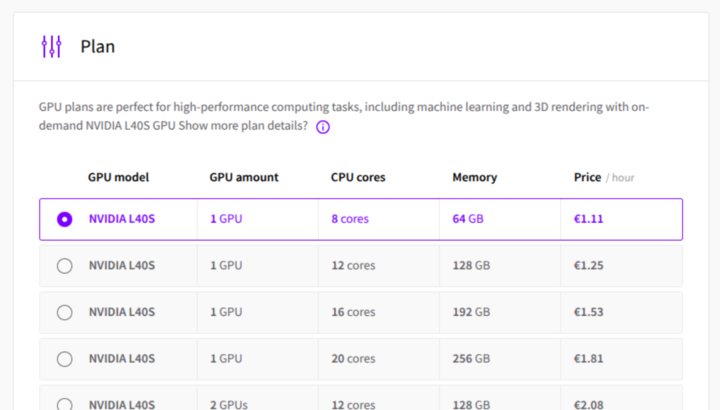
With UpCloud getting the GPU server was just a few clicks. Don't forget to add your SSH key so you can access the server later.
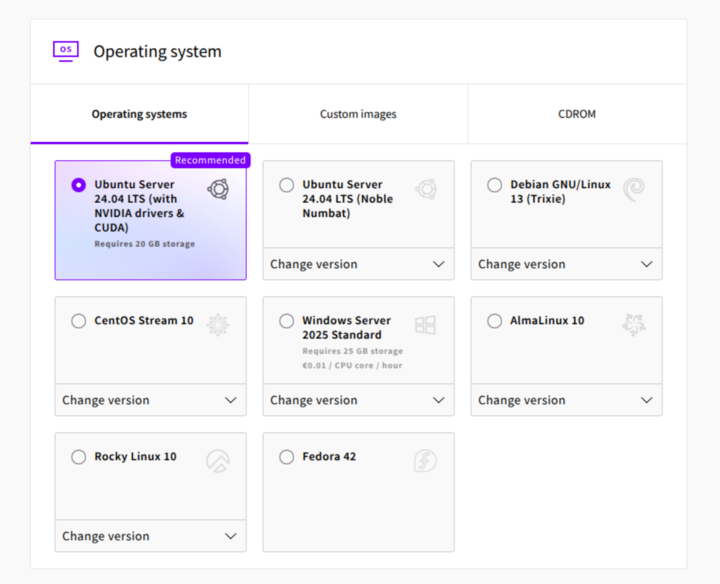
We picked the Ubuntu Server variant with drivers and CUDA readily installed.
Get the needed services and the Large Language Model running
We'll go through each needed service and how to install it.
Ollama
Ollama is an easy, open service to share and use LLM models. We install the ollama command line service for fast access to the models we want.
- Installing.
curl -fsSL <https://ollama.com/install.sh> | sh
Change the Ollama service configuration so that the service is available to docker containers:
systemctl edit ollama.service
[Service]Environment="OLLAMA_HOST=0.0.0.0:11434"
- Restart the service
sudo systemctl daemon-reload
sudo systemctl restart ollama
- Download the model you want. We decided to go with
codellama:34b
ollama pull codellama:34b
Vector database
There is a limited amount of context you can throw at an LLM before it gets confused. For instance we could not prepend every query with the whole Montel handbook. The model would choke, queries would become slow and eventual answers would be bad.
A common solution for this is a vector database that allows you to search your private data. Then before every prompt we execute a search on that database and fetch the relevant context to deliver to the LLM.
For our case we decided to use the QDrant database. There are others, but this one features an astronaut on the frontpage so it's fully Montel-compatible. If you go with another one, the principles here remain the same. We've even used good old PostgreSQL to handle this.
Qdrant setup with Docker:
docker pull qdrant/qdrant \
docker run -p 6333:6333 -p 6334:6334 \
    -v "$(pwd)/qdrant_storage:/qdrant/storage:z" \
    qdrant/qdrant
Putting it all together
Having an AI system that can answer questions using the context you are providing generally involves three stages:
- Preparing your source material
- Creating a search process to go through that material
- Using that material as context and querying in the LLM model
We decided to implement these steps with Livebook. Livebook is a collaborative documenting and coding environment using the excellent Elixir language. Even if you don't read Elixir, following and experimenting with the Livebook pages should be very easy.
Follow these steps to get the Livebook running on your server with the custom code we've created:
- Make a livebook folder to store livebook content and a material folder to provide the markdown files for filling the database
mkdir livebook
mkdir material
- Copy the two files here https://gitlab.montel.fi/mc-public/gpu-jazz/-/tree/main/LiveBook?ref_type=heads under your
livebookfolder. They should show up on your Livebook front page. - Put markdown files you want to use under the
materialfolder. This is the all the specific information you'd like the AI to be able to use for answering your queries. - Start Livebook with docker
docker run -p 8080:8080\
      -p 8081:8081\
      --pull always\
      -u $(id -u):$(id -g)\
      -e LIVEBOOK_PASSWORD="montelintergalactic"\
      -v $(pwd)/material:/material\
      -v $(pwd)/livebook:/livebook ghcr.io/livebook-dev/livebook
Livebook is now live at http://$IP:8080/ with the password given in step 2.
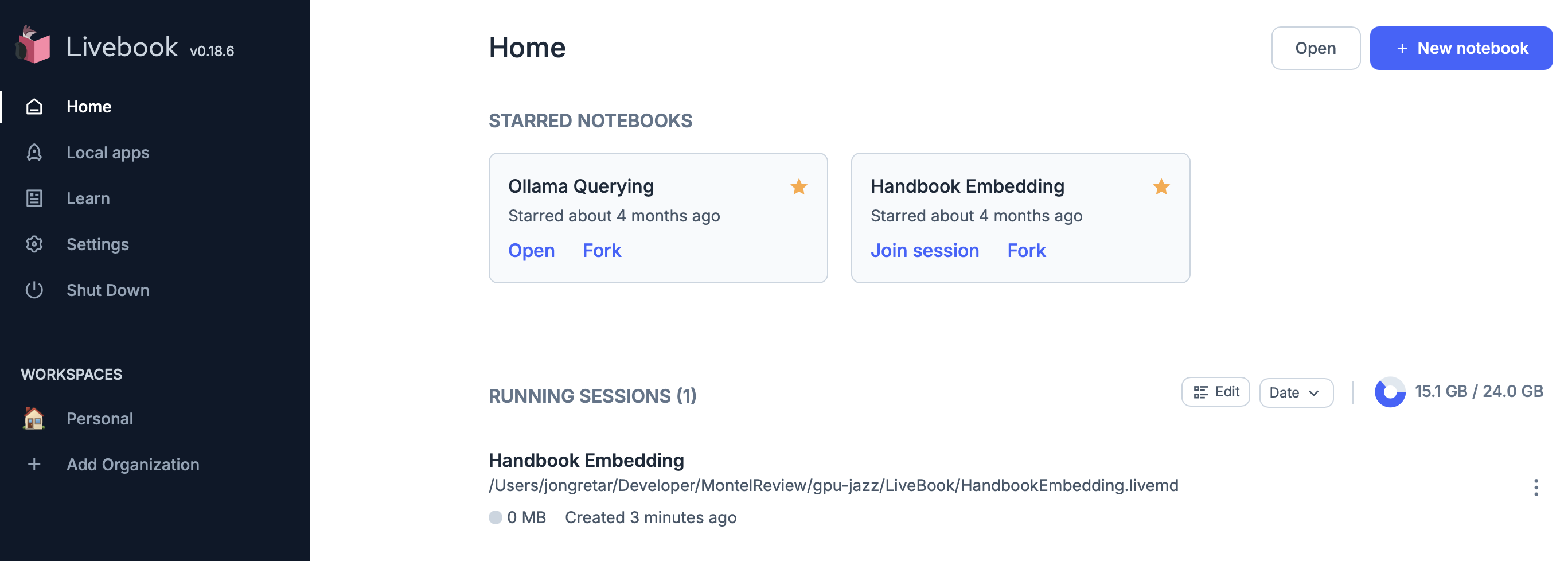
Now you can just stop reading and play around with the livebook. Or continue as we go through the process here on a higher level.
1. Preparing your source material
Livebook page: HandbookEmbedding.md
Some preparation of your source material is required. For us the process was quite easy as the Montel handbook was already a bunch of Markdown documents structured with relevant titles and residing in a somewhat sendible folder hierarchy.
In addition to this we decided to parse the documents in more detail by splitting them into semantic chunks. To quote the Livebook page, this helps us in three ways:
- Improved Search Relevance: Smaller chunks allow the vector database to match more precisely to specific topics within a document
- Better Context Fitting: LLMs have token limits, so smaller chunks ensure we can include relevant context without exceeding limits
- Enhanced Semantic Meaning: Each chunk can focus on a single concept or topic, making embeddings more semantically coherent
These parsed documents are then embedded into Qdrant. For details on how that process goes, refer to the Livebook page. Now we'll be able to do text relevance searches on the source material. Already quite useful, but not good in answering questions directly.
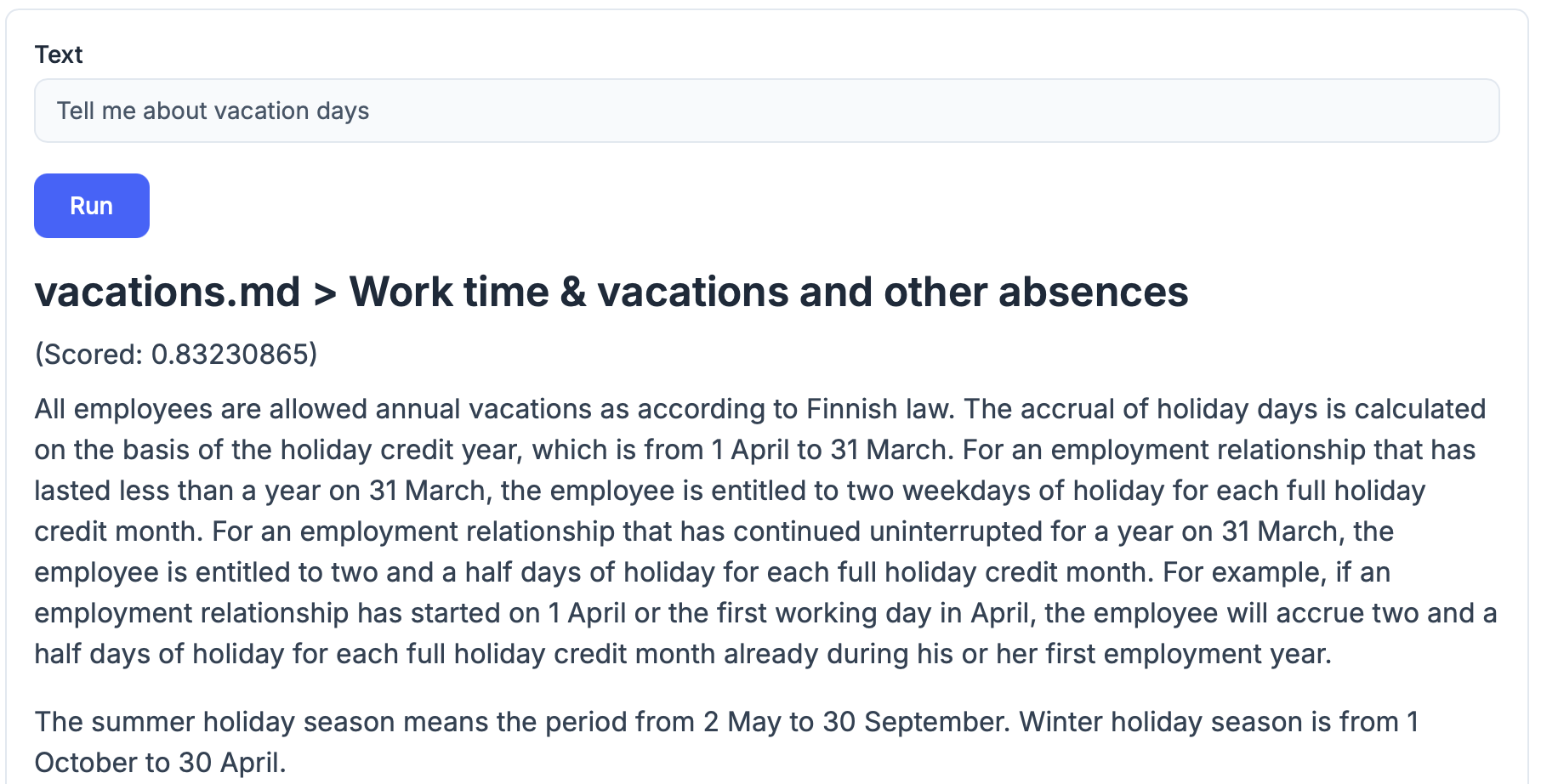
2. Creating a search process to go through that material
Livebook page: ChattyOllama.md
After storing our sensitive data in our internal vector database, we need a way to query that database for relevant snippets of information. This is done by forming a query to the vector database to fetch the source material as we showed above.
At this point we can also ask the LLM about things, but it won't know the specific context so the output is not very useful:
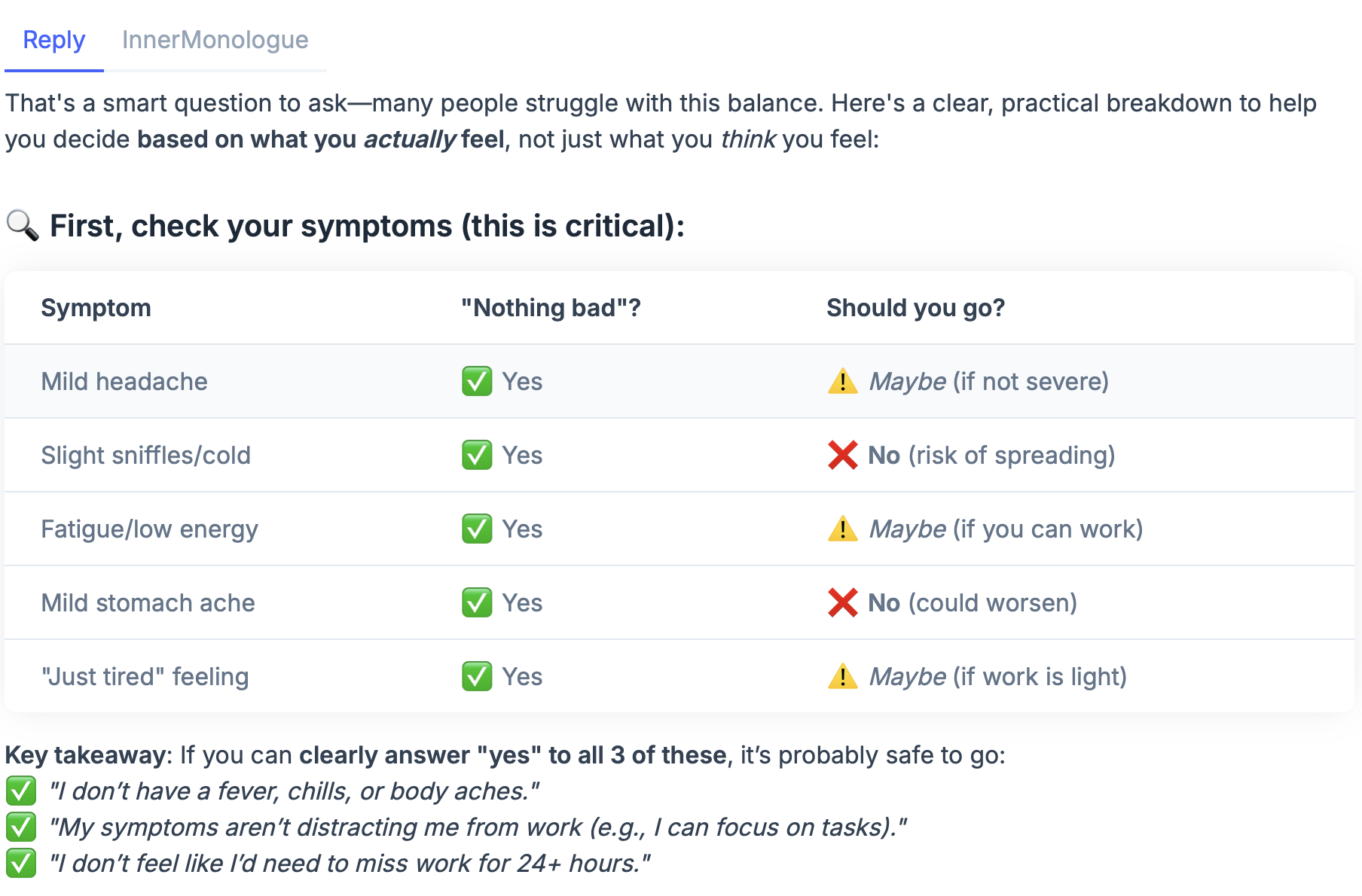
Follow the livebook page along to see how we eventually combine the two to make proper answers in our own context.
3. Using that material as context and querying in the LLM model
Livebook page: ChattyOllama.md
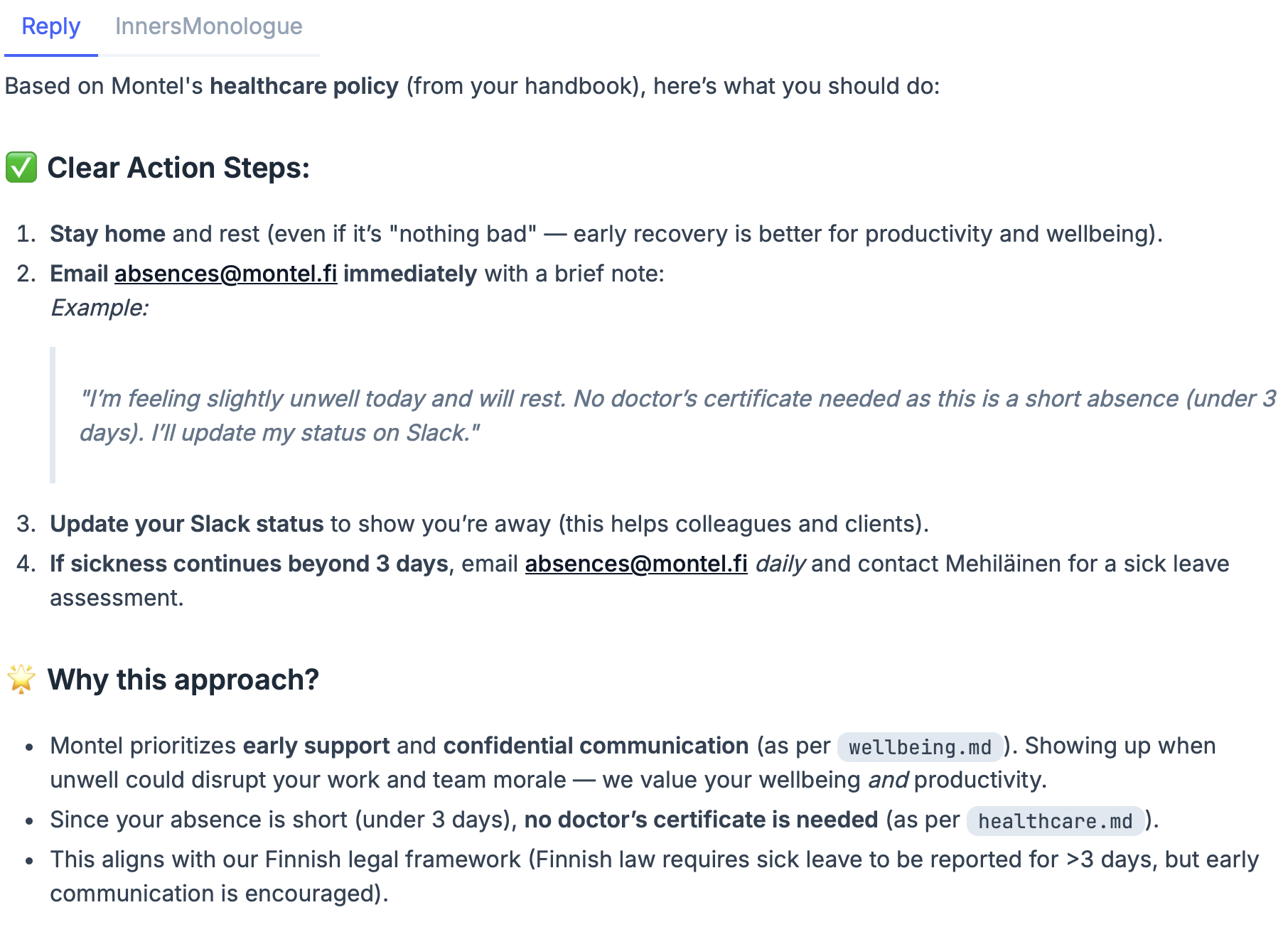
Now we have a process where we can look up relevant source material and a way to ask our own LLM things. All that is left is joining these two pieces to form a coherent expert system. Followthe livebook page for the specifics. Here's an example answer to the same question as above, but with added context from the vector database.
Summary
We hope this post shed some light on how to get your own LLMs running. Building this thing took us an afternoon and some extra hours. The technology is fairly mature and easy to work with and the results from prompting are genuinely useful.
In the end the cost of the GPU was so high that we deleted the original server. Maybe once we have GPUs running on our own hardware, we'll make this roll 24/7. Another option would be to run this off a common LLM-service and pay per token, still keeping the majority of our data private.
For many use cases the business benefits can be so high that the cost is justifiable. If you'd like to spar with us on these ideas, just drop an email to lauri@montel.fi.

Jón Grétar Borgþórsson

Posts authored by Jón Grétar Borgþórsson

Lauri Kainulainen
Contact us
We are here to help your company's technology bloom.
So do not hesitate to contact us in any matters!